Resume Formatting Guide: Fonts, Margins, Layout, and Everything That Matters in 2026
The complete resume formatting guide for 2026. Learn the exact fonts, margins, section order, and layout rules that get past ATS and impress recruiters.

Raman M.
Software Engineer & Career Coach
On this page
Build a resume that gets interviews
- ATS-optimized templates
- AI-powered writing
- Free to start
No credit card required
You rewrote your bullet points three times. You tailored the skills section to match the job posting word for word. Your experience is genuinely impressive. And yet, you keep getting rejected before anyone reads a single line.
The problem isn't your content. It's your formatting.
Resume formatting is the silent killer of job applications. A recruiter scanning 200 resumes in an afternoon isn't going to fight through cramped margins, inconsistent font sizes, or a two-column layout that turned into gibberish after the ATS parsed it. They'll just move on to the next candidate. This guide gives you the exact specifications, with no guesswork, to make sure your resume looks polished to humans and reads cleanly to machines.
TL;DR
- Use Calibri, Arial, or Helvetica at 10-11pt for body text
- Set margins between 0.5" and 0.75" depending on how much content you have
- Single-column layouts are the only ATS-safe choice
- Submit as PDF unless the application explicitly requests DOCX
- Put your name at 14-16pt, section headings at 12-13pt
- Order your sections based on your career stage, not a random template you found online
- White space isn't wasted space. It's what makes your resume scannable in 7 seconds
The Resume Formatting Spec Sheet
Before we dig into the reasoning, here's your quick-reference table. Bookmark this. Every recommendation below is calibrated to how ATS systems actually parse documents and how recruiters physically scan resumes during that 7-second first pass.
| Setting | Entry-Level | Mid-Career | Senior | Executive | Career Changer | Academic/CV |
|---|---|---|---|---|---|---|
| Font | Calibri | Calibri or Helvetica | Garamond or Cambria | Garamond | Calibri | Times New Roman |
| Body Size | 10.5-11pt | 10-11pt | 10-11pt | 10.5-11pt | 10.5-11pt | 11-12pt |
| Name Size | 14-16pt | 14-16pt | 16-18pt | 18-20pt | 14-16pt | 14-16pt |
| Heading Size | 12-13pt | 12-13pt | 12-14pt | 13-14pt | 12-13pt | 12-13pt |
| Margins | 0.75-1" | 0.5-0.75" | 0.5-0.75" | 0.75-1" | 0.75-1" | 0.75-1" |
| Line Spacing | 1.0-1.15 | 1.0-1.15 | 1.0 | 1.0-1.15 | 1.15 | 1.15-1.5 |
| Page Length | 1 page | 1-2 pages | 2 pages | 2-3 pages | 1 page | 2-5+ pages |
| File Type | PDF (or DOCX if required) | |||||
| Columns | Single | Single | Single | Single | Single | Single |
This table is your baseline. Now let's break down every decision so you understand the "why" behind each number.
Fonts That Work in 2026 (and Fonts That Break Everything)
Your font choice sends a signal before anyone reads a word. More importantly, it determines whether an ATS can parse your resume correctly.
The safe choices are system fonts. Calibri, Arial, Helvetica, Cambria, Garamond, and Georgia have been reliable for years and remain so in 2026. They render identically across Windows, Mac, and every ATS platform because they're bundled with operating systems. That means no character substitution, no broken ligatures, no layout shifts.
Fonts to avoid: Anything decorative, overly thin, or custom-installed. This includes fonts like Raleway, Playfair Display, Futura (surprisingly inconsistent across systems), and anything you downloaded from a free font site. These fonts often get substituted during ATS parsing, which means your carefully aligned layout turns into a mess of overlapping text and broken spacing.
The biggest offender in 2026 is still Canva. Canva's resume templates use proprietary fonts embedded in image layers, which is precisely why Canva resumes fail ATS scanning. The ATS either can't extract text at all or extracts it out of order.
Before (risky formatting):
Name in Playfair Display at 24pt, body in Raleway Light at 9pt, decorative divider lines between sections
After (ATS-safe formatting):
Name in Calibri Bold at 16pt, body in Calibri Regular at 11pt, clean spacing between sections with no graphical dividers
- Playfair Display font at 24pt
- Raleway Light at 9pt body text
- Decorative divider lines between sections
- Two-column layout with sidebar
- Calibri Bold at 16pt for name
- Calibri Regular at 11pt body
- Clean spacing with no graphical dividers
- Single-column ATS-optimized layout
The "after" version isn't less attractive. It's just optimized for the reality of how resumes get processed. And when you use a tool like ResumeFast to build your resume, these font choices are baked in by default so you don't have to second-guess yourself.
Font Sizes: The Hierarchy That Guides the Eye
Recruiters don't read resumes top to bottom. They scan. Your font sizes create a visual hierarchy that tells their eyes where to land first, second, and third.
Your name: 14-18pt. This is the largest text on the page. It anchors the document and gives the recruiter an immediate reference point. Executives can push to 18-20pt. Everyone else should stay in the 14-16pt range. Going bigger than 20pt looks like you're compensating for thin experience.
Section headings: 12-14pt. "Work Experience," "Education," "Skills." These headings act as signposts during the scan. Bold them. Make them 1-2pt larger than your body text. Some people use ALL CAPS for headings, which works fine for human readers and ATS alike.
Body text: 10-11pt. This is non-negotiable. Below 10pt, you're straining eyes and signaling that you crammed too much content onto the page. Above 11pt, you're wasting space and your resume will look sparse. If you can't fit your content at 10.5pt, the solution isn't to shrink the font. It's to edit your content. Check our resume length calculator to figure out how much content you actually need.
Contact information: 9-10pt. Your phone number, email, LinkedIn URL, and city/state line can be slightly smaller than body text. This information is important for the recruiter to find, but it doesn't need to compete visually with your experience.
Margins: Where Space Becomes Strategy
Margins control density. Too wide and your resume feels empty. Too narrow and it feels claustrophobic.
The sweet spot is 0.5" to 0.75" on all sides. Here's how to decide:
- 0.5" margins if you have substantial experience (10+ years) and need the space. This is the absolute minimum. Going below 0.5" causes printing issues and makes the text feel like it's falling off the page.
- 0.75" margins for most people. This gives you plenty of room while keeping the page breathable.
- 1" margins if you're entry-level with limited experience. Wider margins prevent a half-page resume from looking awkwardly sparse. They also work well for executive resumes that prioritize readability over density.
A common mistake is using uneven margins, like 0.5" on the sides and 1" on the top and bottom. Keep all four margins consistent. Inconsistent margins create a visual imbalance that experienced recruiters notice, even if they can't articulate why something feels "off."
If you find yourself squeezing margins below 0.5" to fit everything on one page, stop. You either need to cut content or accept a second page. The one-page resume myth has cost more candidates than it's helped. Two pages are perfectly acceptable for anyone with 5+ years of experience.
Section Ordering: Sequence Signals Priorities
The order of sections on your resume isn't random. It tells the recruiter what you consider most important, and it determines what they see in that critical first scan.
Entry-level and recent graduates:
- Contact Information
- Summary or Objective
- Education
- Relevant Projects or Internships
- Skills
- Certifications (if applicable)
Mid-career professionals (3-10 years):
- Contact Information
- Professional Summary
- Work Experience
- Skills
- Education
- Certifications
Senior and executive professionals (10+ years):
- Contact Information
- Executive Summary
- Key Achievements (optional highlight section)
- Work Experience
- Education
- Board Memberships / Publications (if applicable)
Career changers:
- Contact Information
- Professional Summary (emphasizing transferable skills)
- Relevant Experience (reframed for target role)
- Transferable Skills
- Education and Training
- Other Experience
The principle is simple: lead with your strongest asset. For a recent graduate, that's education. For a seasoned professional, that's work experience. For a career changer, it's a summary that bridges the gap between your past and your target role.
Notice that every version starts with a summary section. Summaries are the most-read section after your name and job titles. They give you two to three sentences to frame your candidacy before the recruiter forms their own conclusions. Make them count by learning to quantify your achievements effectively.
White Space and Visual Hierarchy
White space is the most underrated formatting tool. It's not empty space. It's breathing room that guides the reader's attention and prevents cognitive overload.
Between sections: add 12-16pt of space. This creates clear visual separation between "Work Experience" and "Education" without needing horizontal lines or graphical dividers.
Between job entries: add 8-10pt of space. Each role should feel like its own distinct block. If your jobs blur together visually, a recruiter will blur them together mentally.
Between bullet points: use standard single spacing (1.0 to 1.15 line height). Don't add extra space between bullets within the same job. That wastes vertical real estate.
The visual hierarchy formula looks like this:
Your Name (largest, bold) > Section Headings (medium, bold) > Job Title + Company (slightly emphasized, bold or italic) > Bullet Points (standard body text) > Contact Info (smallest)
When every element occupies the same visual weight, nothing stands out. When you create deliberate contrast between levels, the recruiter's eye follows a natural path from your name to your most recent role to your key accomplishments. This is exactly what the research behind the 7-second resume scan reveals: resumes with clear hierarchy get 60% more reading time than those formatted as walls of text.
Our resume readability index can help you measure whether your formatting achieves the right balance of density and breathability.
PDF vs DOCX: The File Format Decision
Submit as PDF unless the application explicitly says otherwise. Here's why:
- PDFs preserve your formatting exactly. What you see is what the recruiter sees.
- PDFs are universally readable on every device and operating system.
- Modern ATS platforms (Workday, Greenhouse, Lever, iCIMS) parse PDFs just as accurately as DOCX files. The old advice that "ATS can't read PDFs" hasn't been true since roughly 2019.
When to use DOCX: Only when the application system specifically requests it, or when the file upload only accepts .doc/.docx formats. Some older enterprise ATS platforms at large corporations still prefer DOCX. If the job posting says "Submit your resume in Word format," do it.
Never submit: JPEG, PNG, or other image formats. These are completely unparseable by ATS. Also avoid formats like .pages (Apple), .odt (OpenDocument), or .txt (strips all formatting).
When you build your resume with ResumeFast, you get a properly structured PDF export that maintains both visual formatting for human readers and clean text extraction for ATS parsing.
Single Column vs Two-Column Layouts
This is where a lot of people get burned. Two-column layouts look sleek in a design portfolio. They look like a disaster to an ATS.
Use a single-column layout. Period. Here's what happens with two-column resumes:
- The ATS reads left-to-right, top-to-bottom across the full page width
- Content from your left column gets merged with content from your right column on the same line
- Your "Skills" section that was neatly in the left sidebar gets concatenated with your "Work Experience" dates on the right
- The parsed output is unintelligible
We tested this extensively in our deep dive on the best resume format for ATS systems. Single-column layouts had a 95%+ accurate parse rate across all major ATS platforms. Two-column layouts dropped to 40-60% accuracy depending on the system.
"But my resume looks boring with one column." It doesn't have to. A single-column layout with smart use of white space, consistent font hierarchy, and strategic bolding looks clean and professional. Check out modern resume templates that prove single-column can still be visually compelling.
The recruiter who spends 7 seconds on your resume doesn't care about columns. They care about finding your job titles, company names, and accomplishments quickly. A single-column layout delivers that.
Common Formatting Mistakes (and How to Fix Them)
Mistake 1: Using Headers and Footers for Contact Info
Many resume templates place your name, email, and phone in the document header or footer. ATS systems frequently ignore headers and footers entirely.
Before:
Contact info placed in the Word document header. ATS extracts zero contact details. Recruiter literally cannot call you.
After:
Contact info placed in the main body of the document, at the very top, as regular text. Name on line one, email | phone | LinkedIn | city on line two.
Mistake 2: Using Text Boxes and Tables for Layout
Text boxes and complex tables are invisible to many ATS parsers. The content inside them either disappears or gets extracted out of order.
Before:
Skills listed inside a text box on the left side. ATS skips the entire section. Your carefully curated skills list never makes it into the database.
After:
Skills listed as a simple bulleted list or comma-separated keywords in the main document flow. Every skill gets parsed and indexed.
Mistake 3: Inconsistent Formatting Between Roles
When your first job entry uses bold for the company name and italics for the title, but your second job entry reverses them, it creates cognitive friction. The recruiter has to re-learn your formatting pattern for every entry.
Before:
Google - Software Engineer (one style) Product Manager - Meta (different style) AMAZON, Senior Developer (yet another style)
After:
Software Engineer | Google | 2023-2025 Product Manager | Meta | 2021-2023 Senior Developer | Amazon | 2019-2021
Pick one pattern and apply it to every single role. Consistency signals attention to detail.
Mistake 4: Overusing Bold, Italics, and Underlining
When everything is emphasized, nothing is. If every other line is bold or italicized, the visual hierarchy collapses and the recruiter's eye has nowhere to anchor.
Rule of thumb: Bold your job titles and section headings. Italicize company names or dates if you want subtle differentiation. Underline nothing (underlines are visually associated with hyperlinks and confuse readers).
Mistake 5: Choosing Decorative Elements Over Clarity
Icons for phone numbers, stars for skill levels, progress bars for language proficiency. These look fun in a Canva template. They communicate nothing to an ATS and very little to a recruiter who has 7 seconds.
Replace skill-level graphics with plain text: "Python (Advanced)," "Spanish (Conversational)." Replace phone icons with the word "Phone:" or just list the number. Clarity always wins.
For industry-specific formatting advice, check our dedicated guides for marketing and sales resumes and finance and accounting resumes. Each industry has subtle formatting norms that can make or break a first impression.
Putting It All Together
Here's a formatting checklist you can run through before every submission:
- Font: Calibri, Arial, Helvetica, Cambria, or Garamond
- Body text: 10-11pt
- Name: 14-18pt, bold
- Headings: 12-14pt, bold
- Margins: 0.5" to 1", consistent on all sides
- Spacing: 1.0 to 1.15 line height, extra space between sections
- Layout: Single column, no text boxes, no tables for layout
- Contact info: In the document body, not headers/footers
- File format: PDF (unless DOCX is specifically requested)
- Consistent formatting across all job entries
- No decorative elements that an ATS can't read
If you want to skip the manual formatting entirely, ResumeFast handles all of these rules automatically. You focus on your content, and the builder handles the formatting specs, ATS optimization, and PDF export.
Skip the Manual Formatting
ResumeFast handles fonts, margins, spacing, and ATS optimization automatically. Focus on your content and let the builder handle the formatting specs.
ATS-Friendly Resume Templates
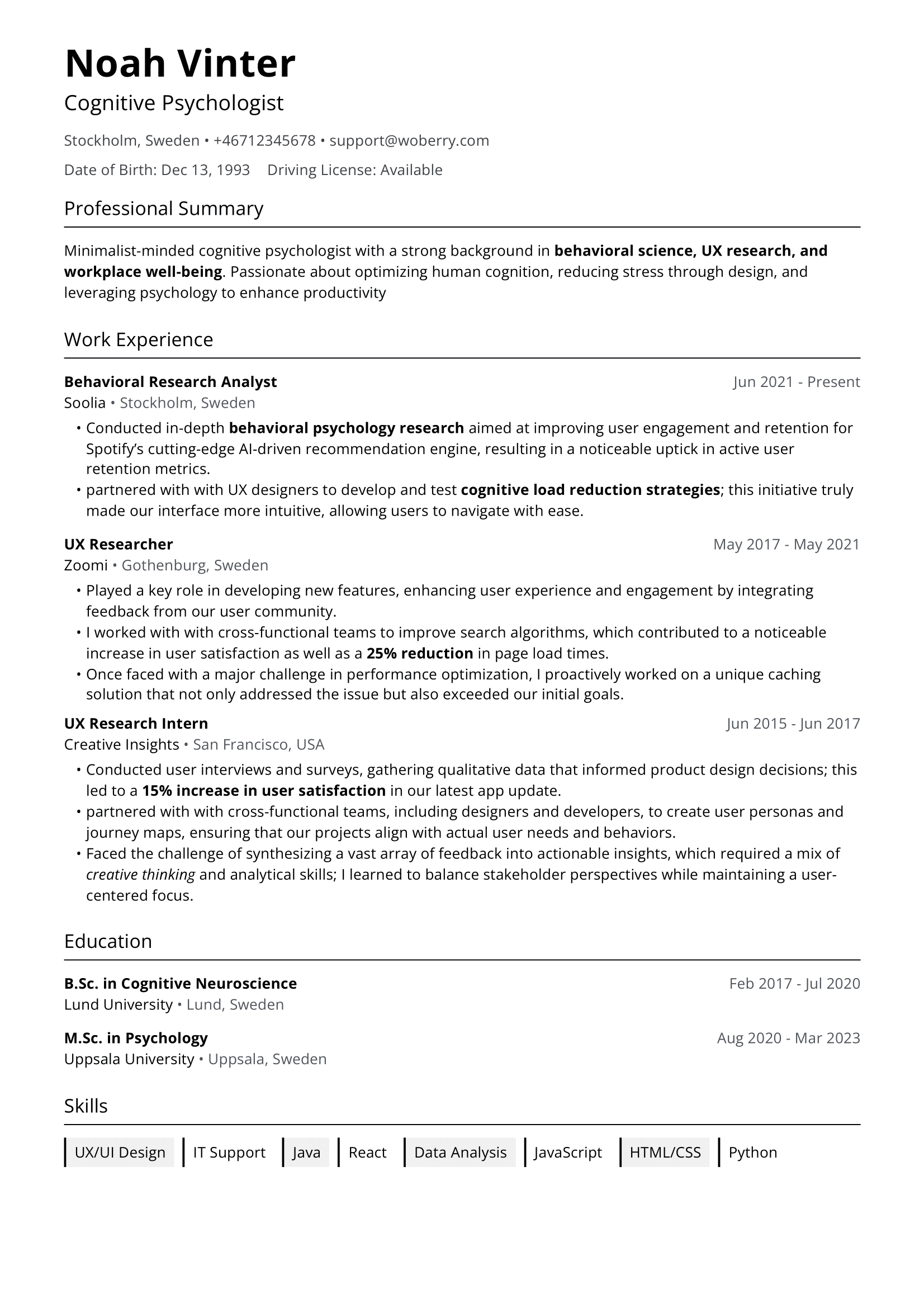
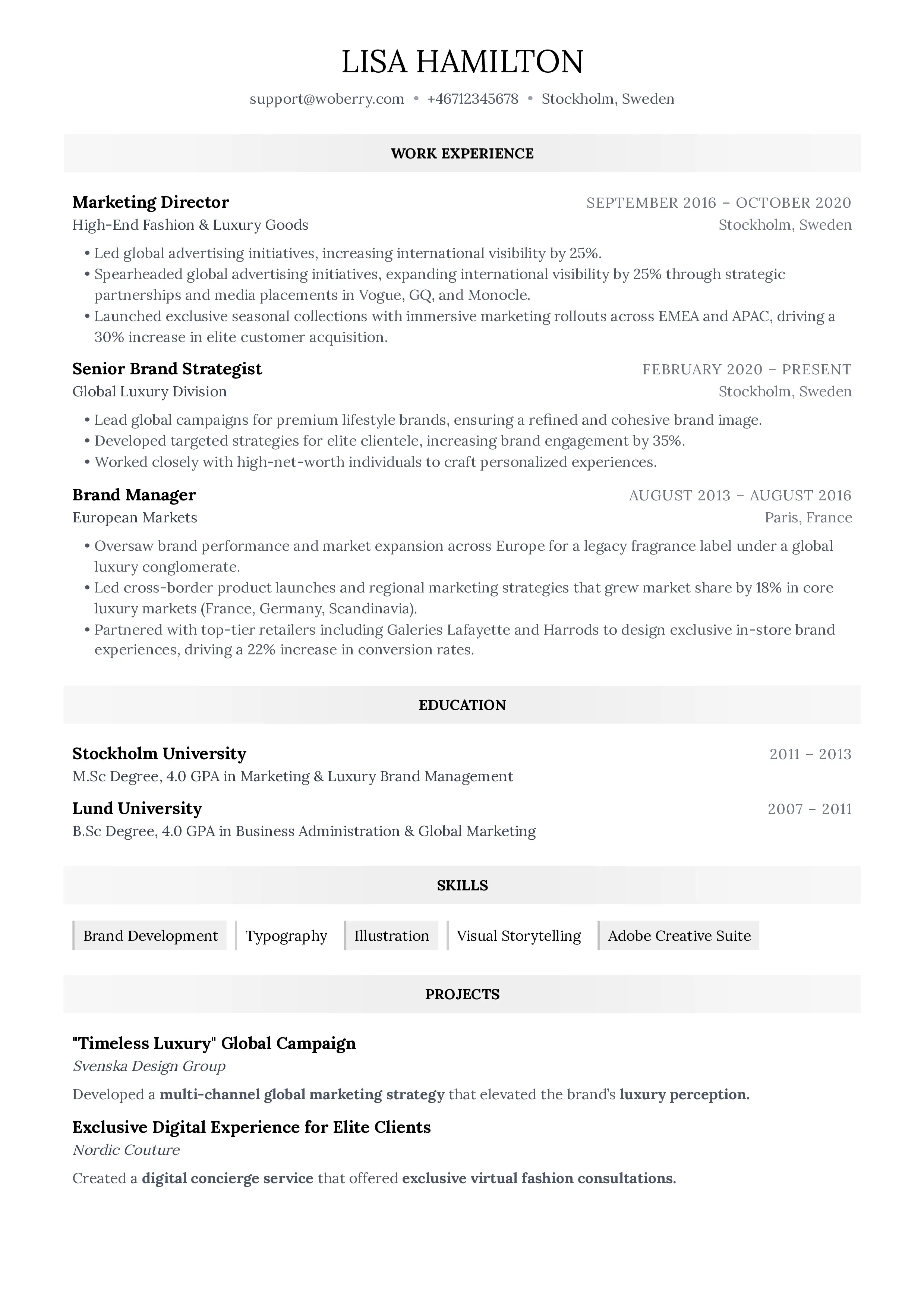
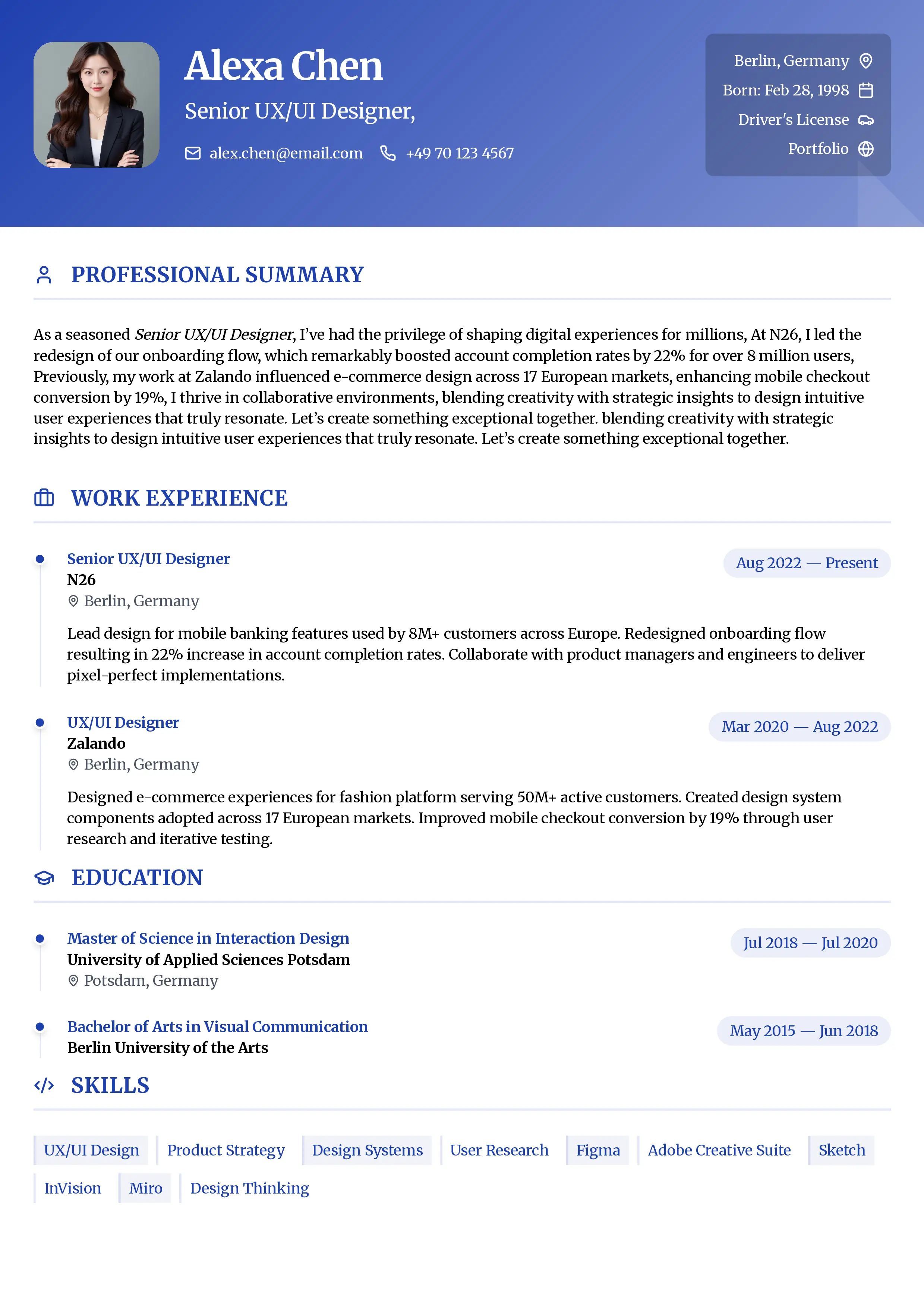
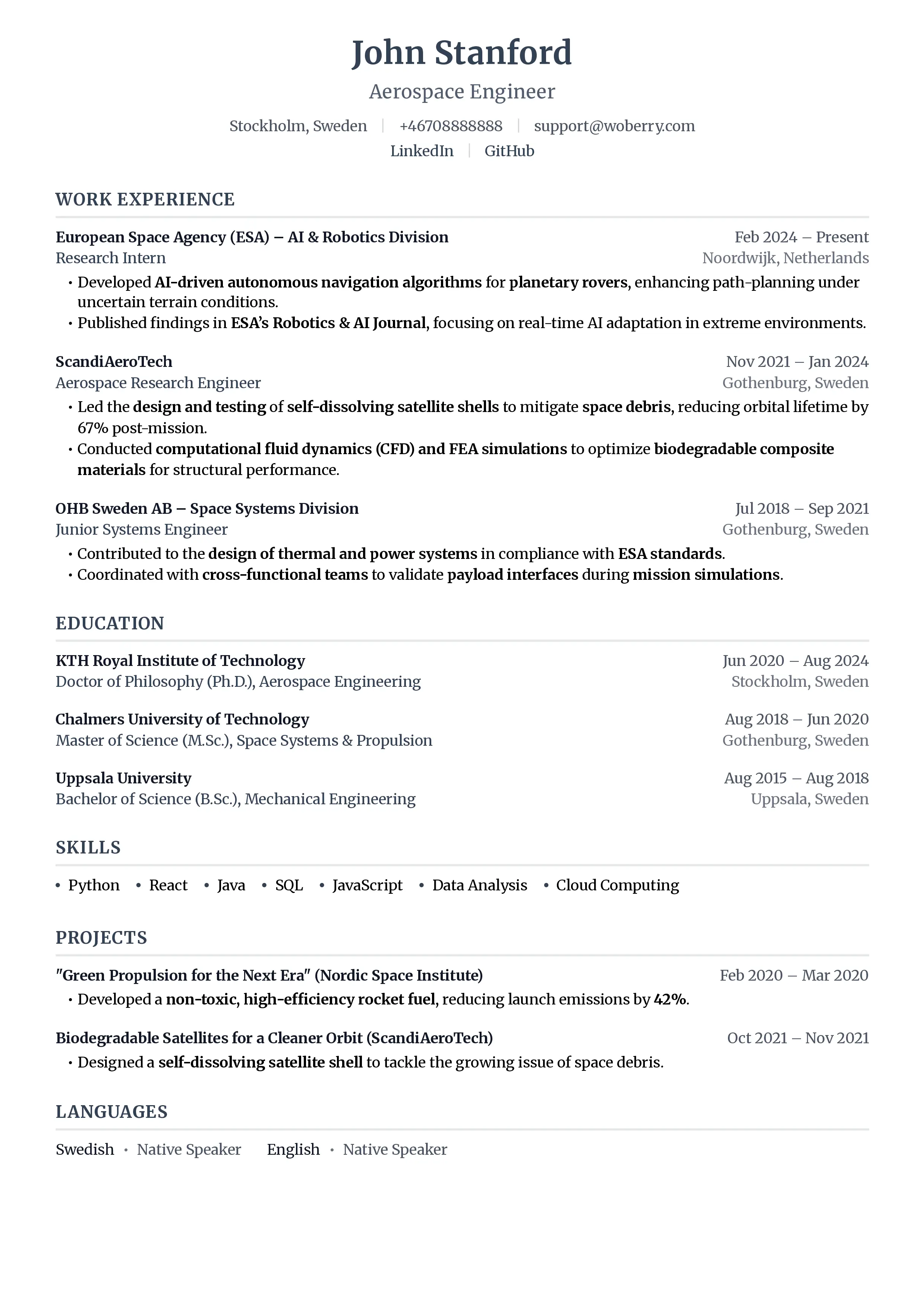
17 professional templates, all ATS-optimized
Browse All TemplatesFrequently Asked Questions
Formatting is one of those things that's invisible when done right and painfully obvious when done wrong. Get these fundamentals locked in, and your resume content finally gets the audience it deserves.
Your resume is your first impression. Make it count.
Join 50,000+ job seekers using ResumeFast to build ATS-optimized resumes that actually get interviews.
No credit card required. Free forever.
Continue Reading
View all articles
Career Objective for Freshers: 25 Examples That Work
Resume for Freshers: Format, Skills and Examples (2026)
Job Hopping in 2026: How Short Tenures Actually Read on Your Resume
How to Turn Your Internship Into a Full-Time Job (Resume and Strategy Guide)
How to Explain a Layoff on Your Resume (Without Killing Your Chances)
Portfolio vs Resume: When You Need Both (And How to Make Them Work Together)
Build a resume that gets interviews
Ready to build your resume?