Video Interview Tips: How to Present Your Resume on Zoom, Teams, and Google Meet
Master video interviews with this complete guide. Includes the Virtual Interview Environment Checklist, platform-specific tips, and how to reference your resume naturally on camera.

Raman M.
Software Engineer & Career Coach
On this page
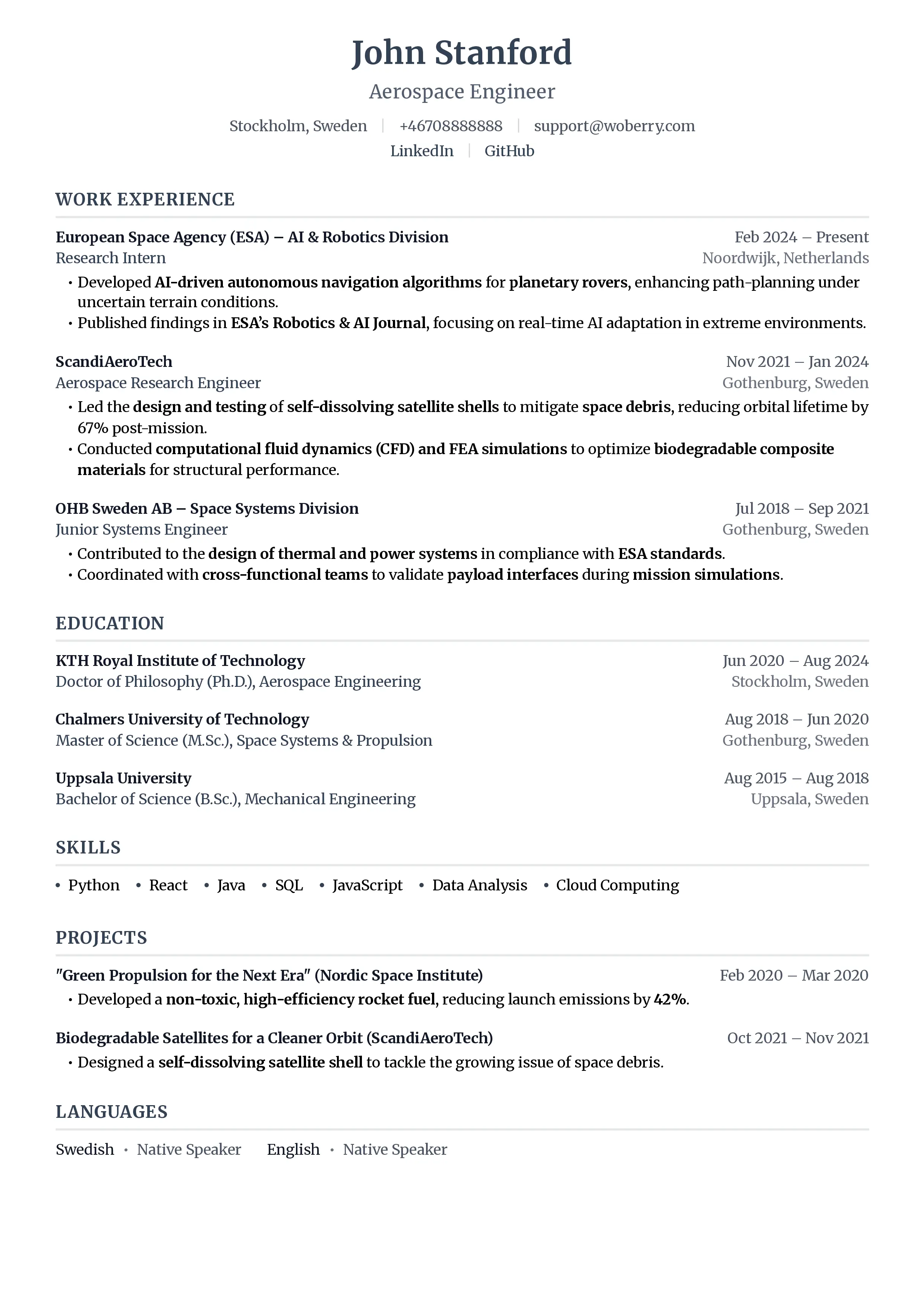
Build a resume that gets interviews
- ATS-optimized templates
- AI-powered writing
- Free to start
No credit card required
You've spent hours perfecting your resume. You've tailored every bullet point, nailed the formatting, and finally landed the interview. Then you join the Zoom call, and your face is half in shadow, your mic sounds like you're calling from a tunnel, and you can't find your resume when the interviewer asks about your last role.
67% of interviews in 2026 include at least one virtual round. That number climbs to over 80% for first-round screens. Your technical setup isn't just a minor detail. It's part of the first impression, and it starts forming the moment your camera turns on.
If you've already followed our resume to interview guide, you know how to translate a strong resume into strong talking points. This post covers the other half: presenting yourself and your qualifications on camera without looking like you're reading a script.
The Virtual Interview Environment Checklist
Before your next video interview, run through this scored rubric. Rate yourself 1 to 5 on each category. Anything below a 3 needs fixing before the call.
| Category | What to Check | Score (1-5) |
|---|---|---|
| Lighting | Face evenly lit from the front. No harsh overhead shadows. A simple desk lamp behind your monitor works. Natural window light is ideal if it's not directly behind you. | __/5 |
| Audio | Use a headset or external mic. Test for echo and background noise. Close windows, silence notifications. Built-in laptop mics pick up fan noise and keyboard clicks. | __/5 |
| Background | Clean, uncluttered wall or bookshelf. No laundry piles, no bed. Virtual backgrounds are fine on Zoom if your hardware handles them smoothly, but a real tidy background always wins. | __/5 |
| Camera Angle | Camera at eye level. Stack books under your laptop if needed. Looking down into a camera makes you appear disengaged. Looking up makes you appear small. Eye level signals confidence. | __/5 |
| Internet Speed | Run a speed test. You need at least 10 Mbps upload for stable HD video. Use a wired Ethernet connection if your Wi-Fi is unreliable. Close bandwidth-heavy apps. | __/5 |
| Resume Accessibility | Have your resume open on a second screen, printed beside your monitor, or pinned as sticky notes. You should be able to glance at key numbers without breaking eye contact for more than a second. | __/5 |
If you score 25 or above, you're ready. Below 20, and your environment is actively working against you.
How to Keep Your Resume Accessible Without Looking Rehearsed
The goal is natural reference, not reading. Here are three approaches that work:
Sticky notes on your monitor. Write 5 to 7 key accomplishments (the numbers, the metrics, the project names) on small sticky notes placed just below your webcam. Your eyes barely move when you glance at them, and it looks like you're maintaining eye contact.
Second monitor or tablet. Keep your resume open on a screen positioned right next to your camera. This is the most seamless option because you can scroll through your full document. Just don't put it so far to the side that you're visibly looking away.
Printed copy on the desk. Old school, but effective. Place it flat on your desk just below your screen. The slight downward glance reads as "thoughtful pause" rather than "reading notes." This is especially useful if your interview preparation includes annotating your resume with talking points for specific roles.
The key principle: your notes should be within 15 degrees of your camera lens. Anything beyond that, and the interviewer sees your eyes darting off-screen.
Screen Sharing Etiquette
Sometimes an interviewer will ask you to share your screen to walk through a portfolio, a case study, or your resume itself. This is where preparation pays off.
Before the call, have a clean desktop with only the files you might need to share. Close all browser tabs you don't want visible. Turn off desktop notifications (Slack messages popping up during a screen share is a real credibility killer).
When sharing your resume, use a clean PDF version. Not the Google Doc with tracked changes. Not the Word file with red squiggly lines. A polished, ATS-friendly PDF that matches what you submitted. If you build your resume with ResumeFast, you can export a clean PDF in one click, ready to share on any platform.
Share only the specific window, not your entire screen. Every platform supports this, and it prevents accidental exposure of other tabs or applications.
Clean PDF Export
When screen sharing your resume, use a polished PDF. ResumeFast exports clean, ATS-friendly PDFs that look professional on any screen share.
Platform-Specific Tips
Each video platform has quirks worth knowing.
Zoom
- Enable "Touch up my appearance" in Video Settings for subtle smoothing.
- Turn on "HD Video" if your internet can handle it (Settings > Video).
- Use "Original Sound" mode if you're in a quiet room. It disables noise suppression, which can sometimes clip your voice mid-sentence.
- Test your setup with a free Zoom test call at zoom.us/test before the real thing.
Microsoft Teams
- Teams defaults to blurring your background. If you prefer a real background, turn this off in the pre-join screen.
- "Together Mode" is a distraction. Make sure it's not enabled.
- Teams is heavier on bandwidth than Zoom. If your connection is borderline, turn off incoming video for other participants (you'll still see the interviewer, but it reduces load).
Google Meet
- Meet has the simplest interface but fewer audio settings. Use a headset for best results.
- The "Check your audio and video" screen before joining is your best friend. Use it every time.
- Google Meet's noise cancellation is aggressive. If you're speaking softly or pausing often, it may clip the start of your sentences. Speak at a steady, normal volume.
Maintaining Eye Contact While Referencing Notes
This is the single most common mistake in video interviews: looking at the interviewer's face on screen instead of into the camera. On their end, it looks like you're staring at their chest.
Train yourself to look at the camera dot, not the screen. It feels unnatural at first. Practice with a friend on a 5-minute call before interview day.
When you need to reference your notes, use the "thoughtful pause" technique. Break eye contact naturally by looking slightly down (toward your sticky notes or printed resume), pause as if you're reflecting, then look back at the camera. This reads as genuine thought, not script-reading.
Some candidates put a small sticker or arrow right next to their webcam as a visual reminder of where to look. It sounds silly. It works.
The Follow-Up: Sending Your Resume After the Call
The interview ends. You thank the interviewer. You close your laptop and exhale. But you're not done.
Within 2 hours, send a follow-up email. Attach a clean PDF of your resume, even if they already have it. This serves two purposes: it gives them an easy-to-find copy, and it's an excuse to reinforce your interest. Check out our guide on writing a thank you email after the interview for templates that actually get responses.
If you're unsure about the format, our guide on how to email your resume to an employer covers file naming, email subject lines, and what to write in the body.
For situations where you haven't heard back after a few days, a well-timed follow-up email after your application can make the difference between landing in the "maybe" pile and getting the next round.
Frequently Asked Questions
Set Yourself Up for Success
Video interviews are here to stay. The good news: once you nail your setup, it's the same routine for every call. Build yourself a clean, professional resume with ResumeFast, run through the environment checklist above, and you'll walk into every virtual interview with the confidence of someone who's done this a hundred times.
Your resume is your first impression. Make it count.
Join 50,000+ job seekers using ResumeFast to build ATS-optimized resumes that actually get interviews.
No credit card required. Free forever.
Continue Reading
View all articles
Should You Apply for Jobs You're Not Qualified For?
Job Search Strategy Guide: How to Find a Job in 2026
Walk Me Through Your Resume: The 90-Second Answer Framework
Job Hopping in 2026: How Short Tenures Actually Read on Your Resume
Reference Checks Decoded: What Employers Actually Verify (and What They Can't)
Take-Home Assignments in 2026: When to Do Them, When to Walk Away
Build a resume that gets interviews
Ready to build your resume?